Data Quality
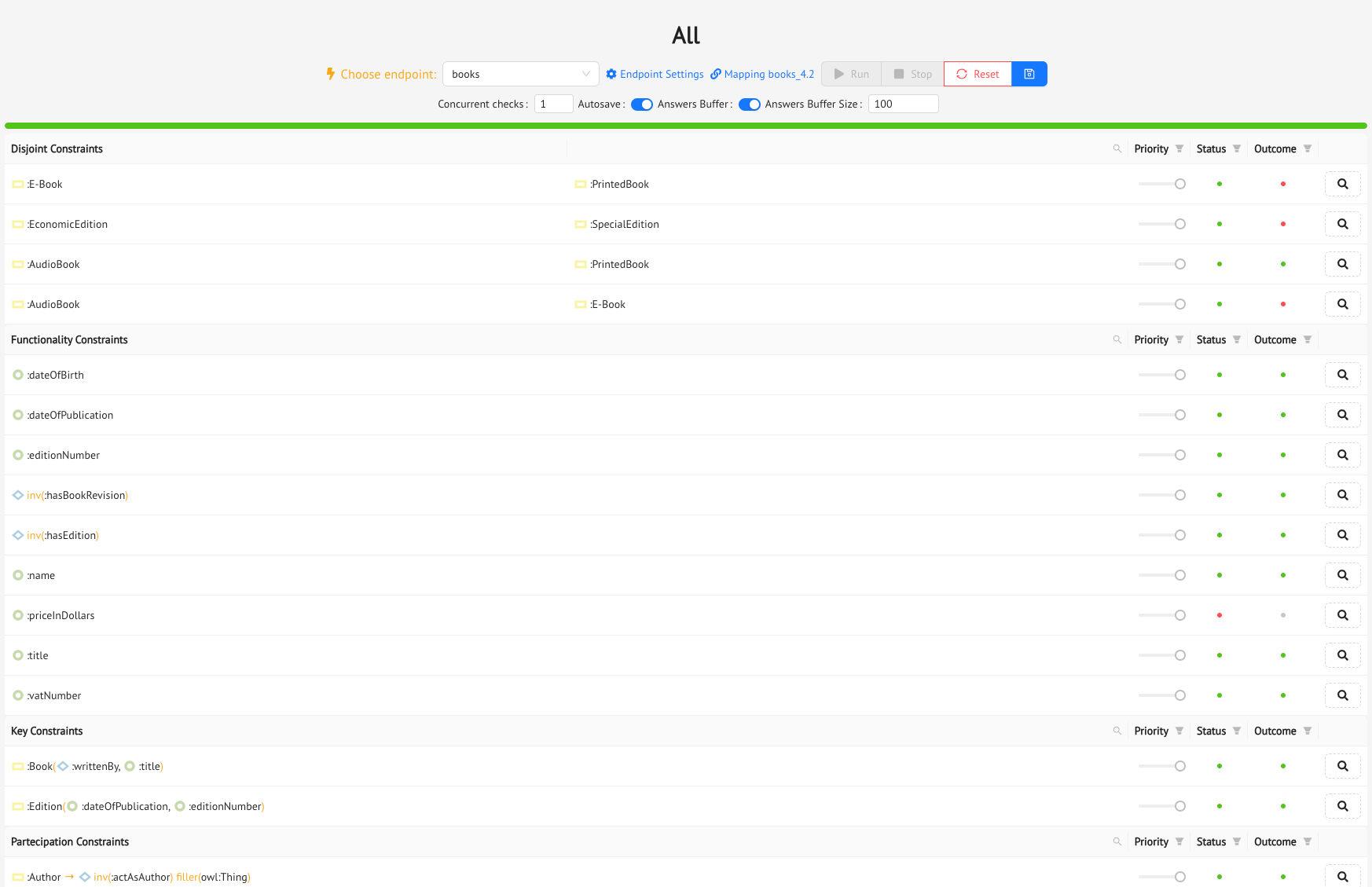
One of the Mastro Reasoner’s main capabilities is to automatically extract data quality rules (or data integrity constraints) from the OWL 2 ontology, and transform them into SPARQL queries. By running these queries through Mastro’s query answering process, the system allows you to extract data from your sources which violates these rules. So, in essence, Mastro checks your business data quality rules for you, reformulates them in terms of SPARQL queries in such a way as to produce query answers which violate these constraints, and shows you these results.
To leverage these capabilities, Monolith features the dedicated Data Quality section of the Ontology Menu.
Access this section, and you will find two different tabs, the Check Sets Tab and the History Tab.
Creating your Data Quality Checks
The Check Sets Tab is where you will build your Data Quality checks: click on the Add Check Sets button, and the Create Ontology Constraint Set drawer will slide out. Here you can give your data quality check set a name, and select the integrity rules you want to add to the set. For each rule, you can set a priority, from 1 to 3, with 3 being the maximum priority. When the system runs the checks, it will follow the order set by the priorities you have chosen.
There are three different kinds of rules you can select from (and more will be added in upcoming releases):
- Empty Queries: these are the queries in your Query Catalog which you have tagged with the special
dataqualitytag, meaning that they should not produce any answers. So these are basically user-defined business rules which Mastro will check for you, and provide violations of, if there are any. - Disjoint Constraints: these are the constraints which Mastro extracts from the
DisjointClassesaxioms of the ontology. So here you are choosing one or more pairs of classes which are disjoint from one another in the ontology. - Functionality Constraints: these are the constraints which Mastro extracts from the
Functionalityaxioms of the ontology, both on object properties and on data properties. So you can simply choose one or more object or data properties which are functional (or inversely functional for some object properties) in the ontology. - Key Constraints: these are the constraints which Mastro extracts from the
HasKeyaxioms of the ontology, which are used to indicate which combination of object and data properties are the identifiers for the class which is involved in the axiom. In this case, you can choose between the listed classes, where for each one you will see the list of identifying properties. - Participation Constraints: these constraints are typically extracted from specific kinds of
SubClassOfaxioms in the ontology. They basically are used to impose that each instance of a certain class must necessarily be involved in a given object property, or myst have a given data property. - Universal Constraints: like Participation Constraints, these constraints are also extracted from specific kinds of
SubClassOfaxioms in the ontology. However, they are used to specify that an instance of a certain class can be linked, through an object property, to instances only of a given class. - Cardinality Constraints: cardinality constraints determine restrictions on the minimum and/or maximum number of occurrences for which an instance of a class can be involved in a certain object or data property. Like Participation and Universal constraints, these are extracted from specific kinds of
SubClassOfaxioms in the ontology.
Running the Data Quality Checks
Once you have built your set, you can run it, to see if there are any violations in the data of the constraints you have chosen.
Before running the set, select an Endpoint from the dropdown menu, choose whether you want to activate the Answer Buffer, which will limit the number of produced violations to the buffer you specify, and turn the Autosave toggle button on or off, if you want to save the execution to the History Log for later reference (which we will get to in the next section, for now just leave it on).
When you’re ready, press the Run button, and Monolith will start sending Mastro the constraints to check. During the execution, you will see the lights come on in the Status and Outcome columns. The Status column tells you whether the constraint has been checked correctly (green light if everything was ok, red light if there was an error, in which case you might want to check your mappings); the Outcome column tells you whether Mastro has found any violations to the constraint (again, green light if no violations were found in the data, red light if there were some).
After a constraint has been run, you can click on the little magnifying glass button at the end of its row, and Monolith will show you the detailed results of its execution:
- the SPARQL query that was run to check the constraint
- the witnesses, which in Monolith dialect means the violations of the constraint
- the Query Execution details, so you can see the actual SQL query that was sent to the DBMS
The History Log
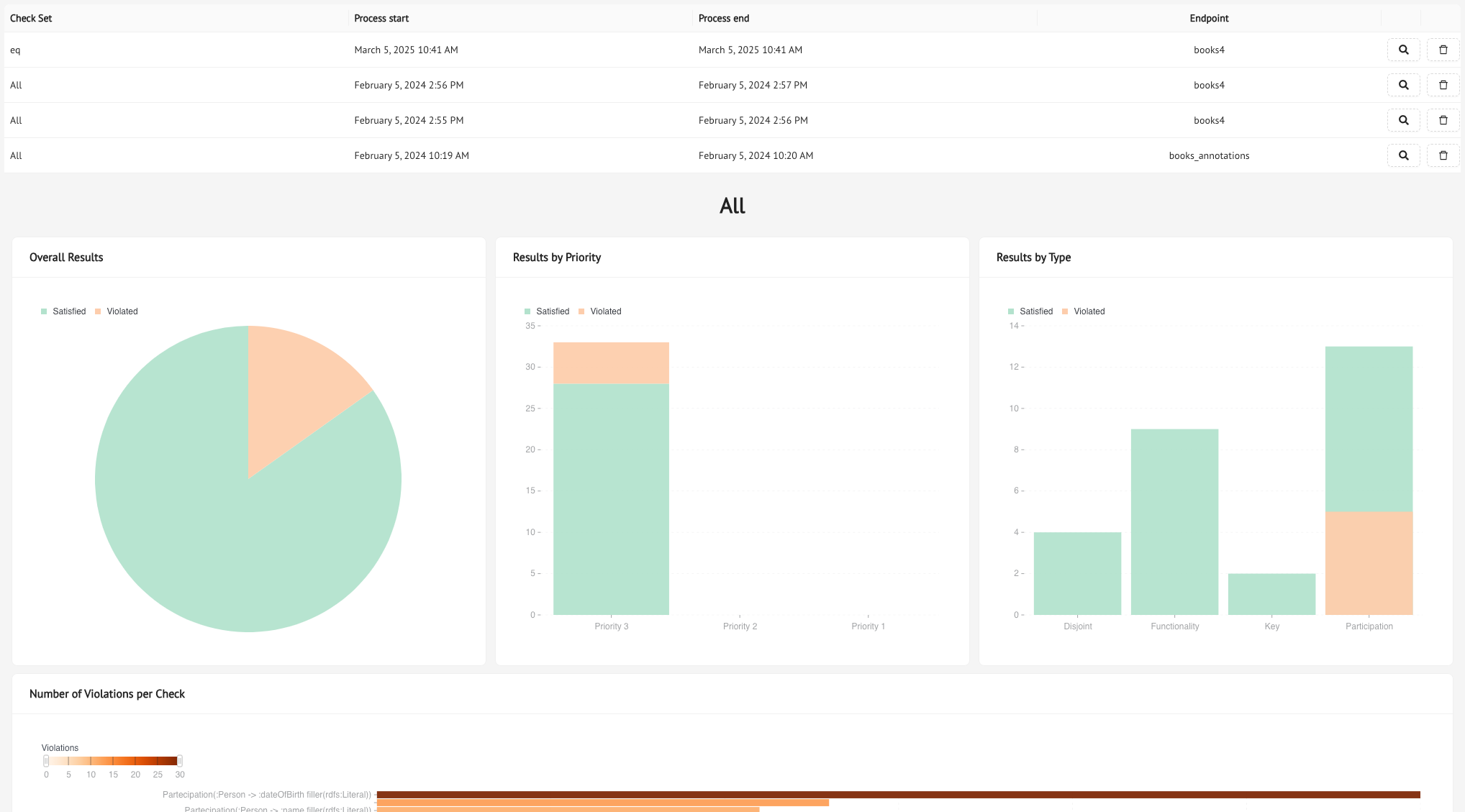
The History Tab is where you can go back and see all the Data Quality Checks you have run (assuming you saved them). For each check, the log will provide you the ID, the date of execution, the timestamp of when it finished, the endpoint, and our handy little magnifying glass button, which opens up the full report for each check set.
Try clicking on it: you will see that the aggregate results are provided through charts and graphs based on priority and/or constraint type, plus you will see the number of violations for each constraint, and, by selecting a constraint, you will see the detailed results of its execution in the table at the bottom of the page.
Previous Next