Virtual Knowledge Graph (VKG)
The Virtual Knowledge Graph (VKG), is your gateway to exploring the ontology and the underlying data starting from a single class, and navigating the relationships between the classes and entities in the domain. To be able to fully exploit the capabilities of the VKG explorer, you have to have a Mastro Endpoint set up already. This will allow you to incrementally and seamlessly move from the classes and object properties in the ontology model to the underlying data, meaning to the instances of the classes.
The first step for your exploration will necessarily be the selection of a first class of your interest, hence this will be the dialog you will se in the VKG:
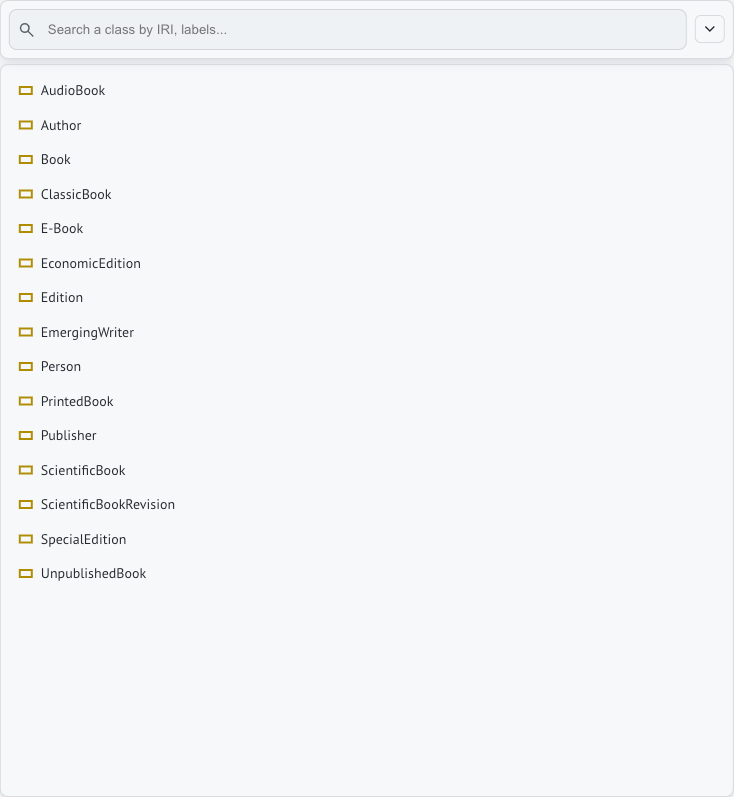
Let’s now suppose we’re interested in an Edition. Selecting such class from the list will result in its addition to the graph.
The exploration can be carried out either using buttons on nodes moving the cursors on any class or class instance or using the contextual menu on nodes.
Node Buttons
There are different buttons depending on the kind of node.
Class Node Buttons
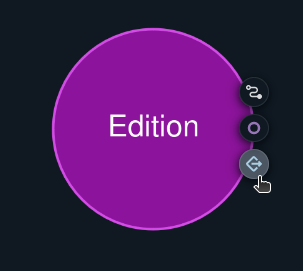
The available buttons on Class nodes are:
- Shortest Path (Active Endpoint Required) from which it’s possible to expand and retrieve a set of class instances (individuals) connected to each other following a selected path.
- Instance Search (Active Endpoint Required) from which it’s possible to search instances of the selected class. In order to change the search function (regex or contains) navigate to the Settings section.
- Model Object Property Expansion to expand the graph adding classes connected through object properties.
Class Instance Node Buttons
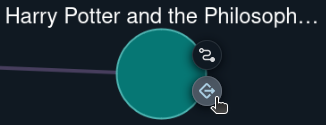
The available buttons on Class Instance nodes are:
- Shortest Path (Active Endpoint Required) from which you can access to all the other instances linked to this one by the selected path. Yu can either connect a class or a specific class instance
- Class Instance Object Property Expansion to expand the graph adding class instances connected through object properties.
Node Contextual Menu
Contextual menu varies depending on the kind of node it referes to.
Class Node Contextual Menu
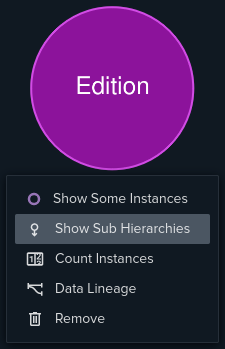
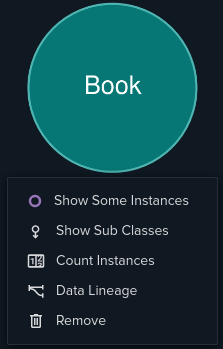
The available actions are:
- Show Instances (Active Endpoint Required): retrieves a set of instances randomly and adds it to the graph.
- Show(Hide) Sub(Super) Hierarchies: expands or collapse classes in hierarchies.
- Show(Hide) Sub Classes: expands or collapse classes in IS-A relation
- Count Instances: shows the number of instances of a given class in a badge attached to the class node.
- Data Lineage: shows the entity data lineage of an entity in a drawer
- Remove: removes the node from the graph
Class Instance Node Contextual Menu
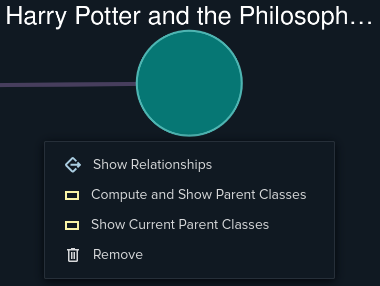
The available actions are:
- Show Relationships: for each possible relationship of a class instance, retrieves the first class instance connected by such relationship.
- Compute and Show Parent Classes: computes the most specific class it belongs to and then shows it (instance checking)
- Show Current Parent Class: shows the current parent class, it may be derived from other actions and not be the most specific one
- Remove: removes the node from the graph
From here, using the commands listed so far, there are mainly two ways to explore further:
Exploring The Ontology Model
The most basic exploration available in our VKG is the ontology model exploration, which allows you to explore and navigate the classes (concepts) and their object properties (relationships) to other classes.
If there is no Mastro Endpoint available, this kind of exploration will be the only available.
Model Object Property Expansion
With this action is possible to explore the classes connected to a given class through an object property.
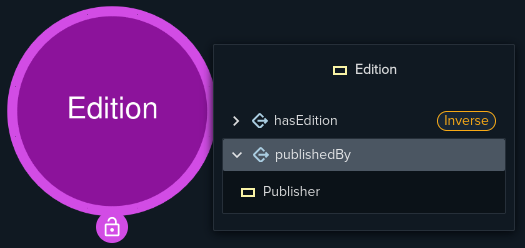
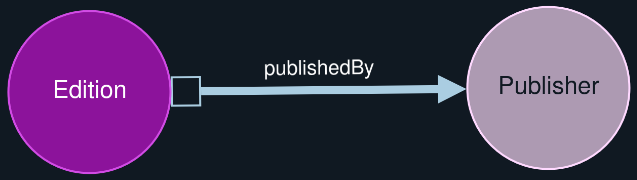
Selecting the last button with the object property icon, a list of relationships involving Edition will be shown, in our example the object properties are hasEdition and publishedBy. Each object property can connect a class to multiple classes, in the image we can see that publishedBy connects Edition with Publisher, this can be intuitively read as An Edition is publishedBy a Publisher.
If you want to proceed on exploring Publisher`s relationships you can select it and it will be added to your graph
Hiearchies Expansion
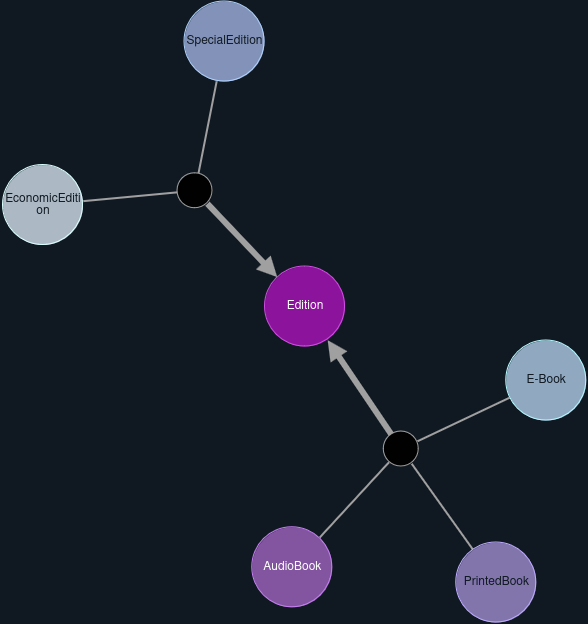
In the ontology model, classes can be arranged in hierarchies. It’s possible to explore hierarchies in which a class is involved using the command Show Sub Hierarchies in the contextual menu of a class.

If the class is involved in any hierarchy, you will see a command for showing it. In this case Edition has at least one sub hierarchy, which means it has several classes whose union is included in Edition. For a more detailed and precise explanation please read more in: …
The result of such command is shown below:
Data Properties
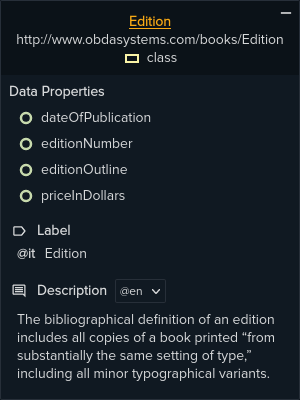
Data properties are the other kind of relationships in which classes can be involved. Instead of other classes, they connect a class to values, getting values of such properties is shown in data properties values. They are listed in the detail widget along with all other metadata and appearing whenever a class is selected on the graph.
Exploring Data
Exploring data means exploring individuals and values linked to the ontology model classes and data properties by means of the mappings. Since there must be also a datasource data will be retrieved by a previously created and active Mastro Endpoint.
Using the commands and actions available on nodes it’s possible to retrieve class instances and their data properties values. There are several ways to retrieve such instances.
Instance Search
From a class node, clicking the instance search button

a contextual search widget will appear.
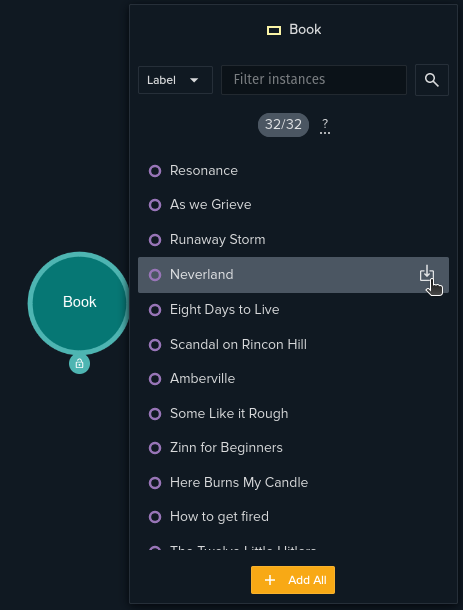
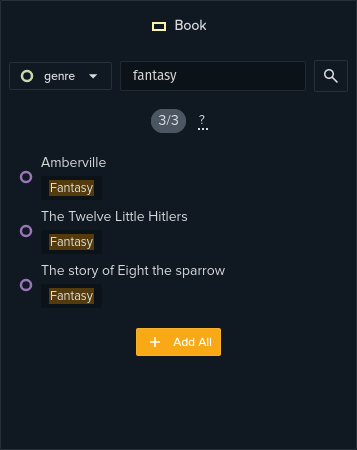
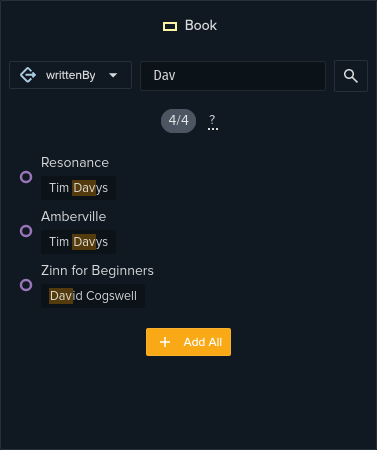
It’s now possible to add all found instances to the graph or to search specific instances using the search box in the top part of the widget.
The select box alongside the input box allows to filter by values of data properties or by individuals connected through object properties.
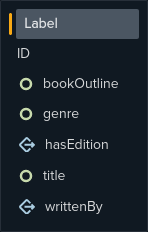
For example, in this case it’s possible to filter by genre or search books written by someone. On each result, the matching value (or partial match) will be highlighted explaining the reason why it was retrieved.
Automatic Instance Addition
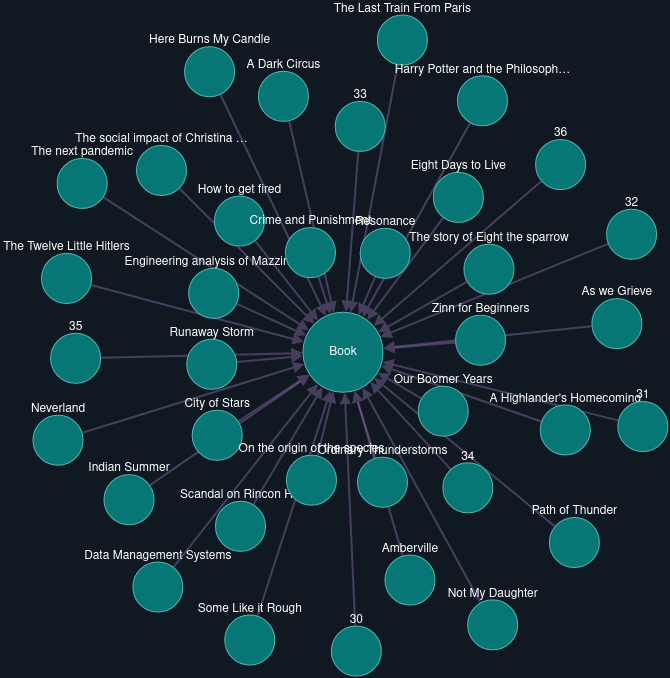
In case a specific search is not necessary, it’s possible to automatically add a set of instances of a given class to the graph. This is done by clicking the first command in a class node contextual menu

Class Instance Object Property Expansion
Given a class instance node, the user can explore and retrieve class instance related and connected to it by an object property (i.e. relationship).
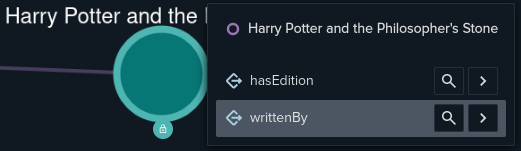
Clicking on the object property node’s button

a list of object properties in which the instance’s class is involved will be shown.
The two buttons for each object property allow to:
- Magnifying lense : manually search instances connected through such object property.
- Right arrow : automatically add first 50 instances connected through such object property
Example: add to the graph the first 50 editions of Harry Potter and the Philosopher’s Stone.
Clicking on the search button for a certain object property will show the instance explore widget.
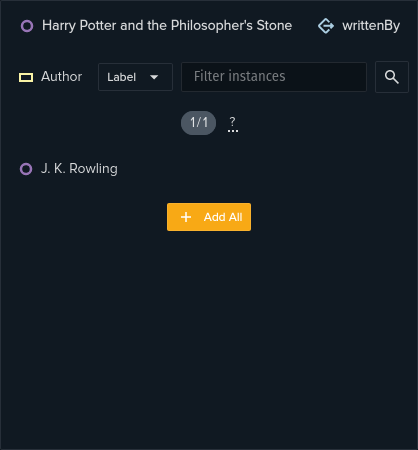
There are two possible ways to filter out instances:
- Type: The object property might connect the instance to instances of different classes, it’s possible to select the desired classes for the result instances
In this example the only class connected to
Book(the class whose the selected instance belongs to) throughwrittenByis the classAuthor, that’s why it has automatically been selected. In case of multiple classes, it would be possible to choose a set of classes to filter out only instances belonging to such class.
- Properties: available properties changes based on the selected classes. If no selection is made, every property of every class in the list will be available. An example of such filtering is shown at the end of Instance Search section.
Shortest Path
Given a class instance node, it’s possible to find other connected instances following a path over the ontology model. Selecting the button

on a class instance, the system will allow the user to select a target Class or Class Instance.
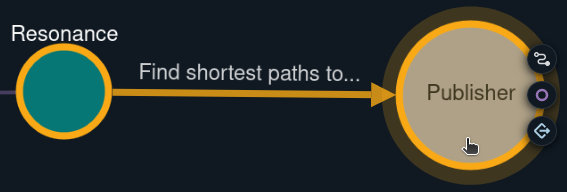
In this example we are trying to find the
Publisherof theBookinstance: Resonance. We assume we dont’t know precisely how to reach thePublisherfrom theBook.
This will set the source and the target classes of the path, then the system will compute the first five shortest paths from source to target and will let the user to select one.
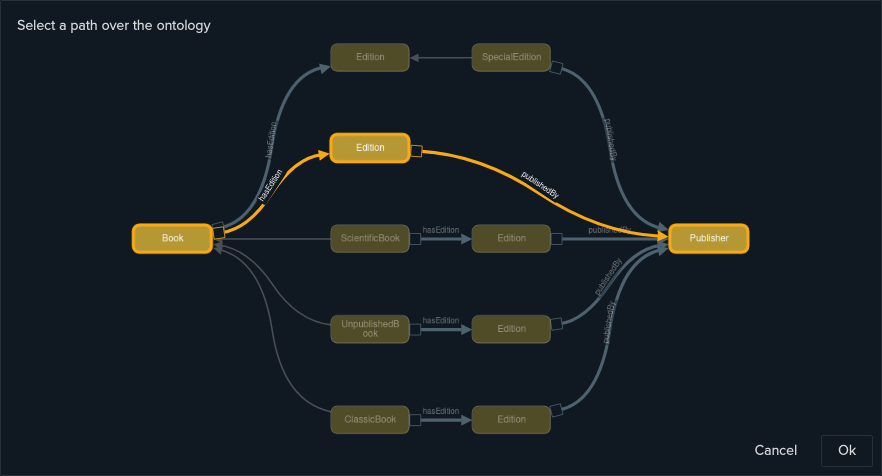
In this example, it’s an
Editionwhich ispublishedByaPublisherand not aBook, we didn’t need to know such model detail since the system automatically told us.
Once the path selection is confirmed, the system will retrieve every instance of the classes in the path that are connected each other by the object properties connecting the classes in the path.

We found that Eric Jones published one edition of the
BookResonance.
Data Properties Values
The values of data properties related to class instances are shown in the entity details widget along with all other details. The widget is shown on node selection.
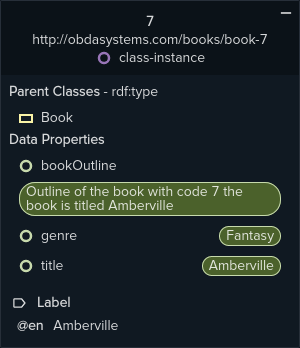
Details of the
Bookinstance titled Amberville.
VKG Catalog and Settings
It’s possible to save a virtual knowledge graph in the catalog and to change several settings about endpoint and presentation. The VKG Catalog shows previously saved virtual knowledge graphs (i.e. snapshots), selecting an entry in such catalog will load the graph to continue the exploration where it was left off.
These actions are available through the top toolbar.

Buttons from left to right:
- Name of the snapshot of a VKG
- Toggle catalog section showing the list of saved snashots
- Save VKG snapshot in catalog
- Edit Description of the current snapshot
- VKG Preferences
VKG Preferences
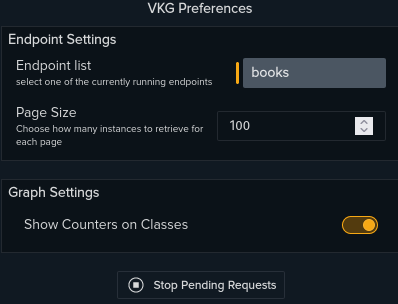
This widget allows to change further settings:
- Select the Mastro Endpoint used to retrieve class intstances
- Change the size of the page that is the number of instances to retrieve at each request to the endpoint while fetching all the result instances of a query
- Hide the number of instances on classes (on uge database could be expensive). This number can be materialized by means of a specific service available in the Mastro Endpoint page for the selected endpoint
- Stop the pending Requests button on the endpoint such as:
- Counting instances on classes
- Computing parent classses for instances
- Queries
Previous Next